Dashboard Overview
The dashboard is the entry point to the EyesOnIt Web UI. It organizes the product into runtime workflows and configuration workflows so users can move directly into the task they need.
The screenshot below shows the dashboard with the workflow cards, the server status toggle, and the top navigation summaries.
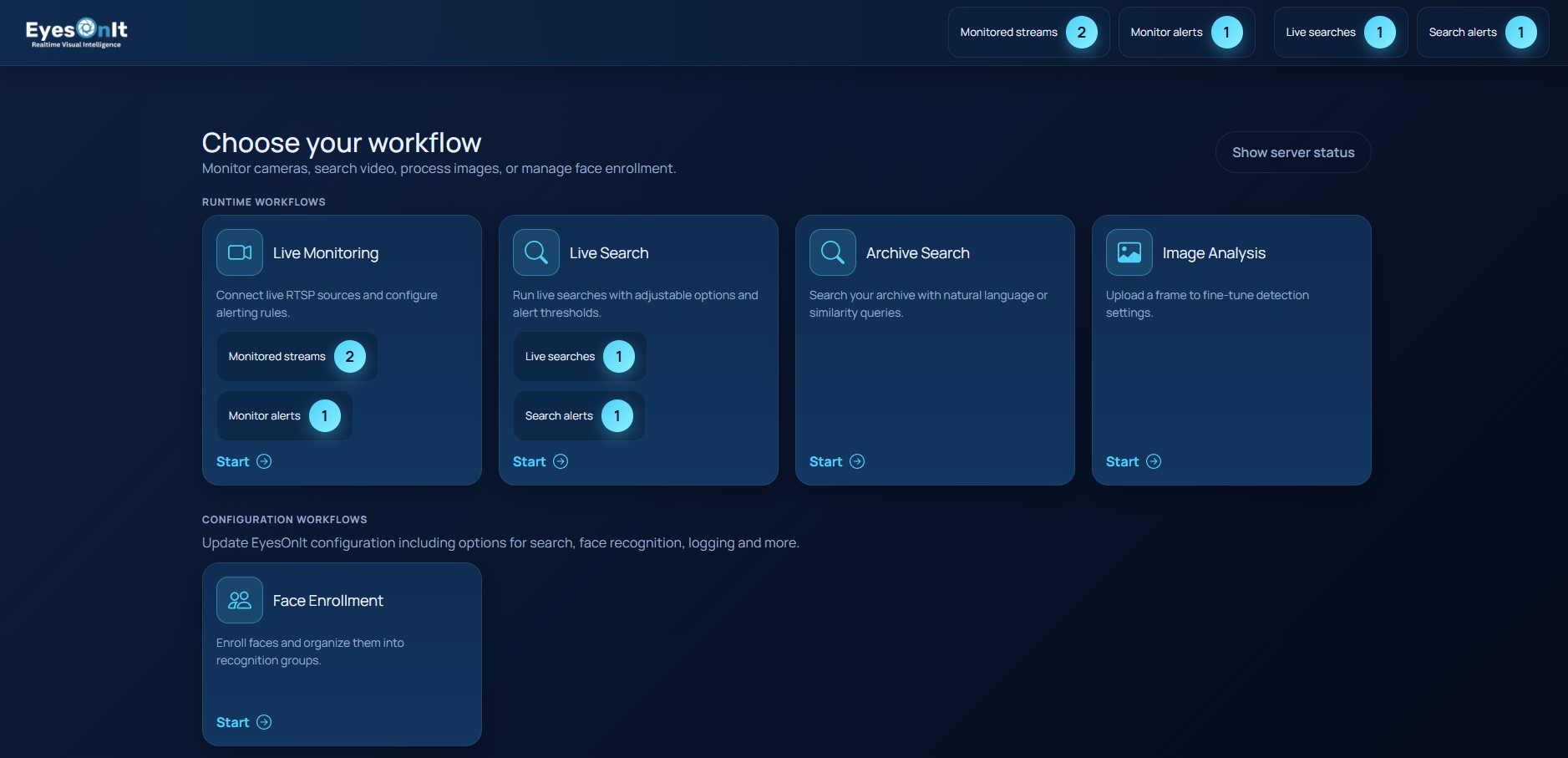
What the dashboard shows
- Runtime workflows:
Live Monitoring,Live Search,Archive Search, andProcess Image. - Configuration workflows:
Face Enrollment. - Alert summaries: counts for monitored streams, monitor alerts, live searches, and search alerts.
- Optional server panel: a
Show server statusbutton that expands the status and licensing area.
How to use it
Choose the workflow card that matches the job you want to perform:
- Use
Live Monitoringwhen you need to configure streams and receive stream-based alerts. - Use
Archive Searchwhen the footage has already been indexed and you need to search past results. - Use
Live Searchto configure EyesOnIt to perform unique monitoring and live alerting for an individual camera. - Use
Process Imagefor one-off still image analysis. - Use
Face Enrollmentto manage recognition groups and enrolled people.
The summary pills in the header stay available after you leave the dashboard. They provide a quick way to jump back to monitoring or live search from anywhere in the UI.