Managing Streams
Use the stream list to add streams, update existing configurations, start or stop monitoring, preview an annotated stream, and open performance charts.
The screenshot below shows the stream list with stream rows and action icons.
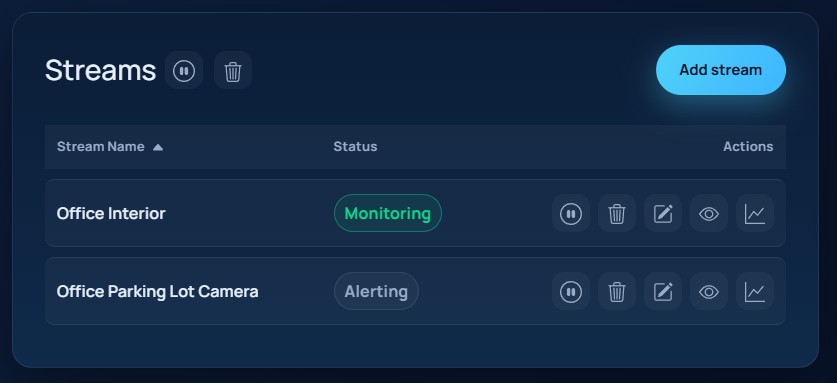
Stream list actions
Each stream row exposes these actions:
- start or stop monitoring
- remove the stream
- edit the stream configuration
- open a live MJPEG preview
- open the stream chart
The list header also supports bulk actions:
- start all idle streams
- stop all active streams
- remove all streams
The Status column reflects the state reported for each stream. The UI treats idle as a stream that is not currently being monitored.
Adding or editing a stream
When you open the stream editor, the Stream section includes:
Stream NameStream URLFrame RateIndex For Search
If Index For Search is enabled, the UI also lets you choose which indexed object families should be searchable later:
PeopleVehiclesAnimalsBags
The screenshot below shows the stream editor with the stream settings form and preview image.
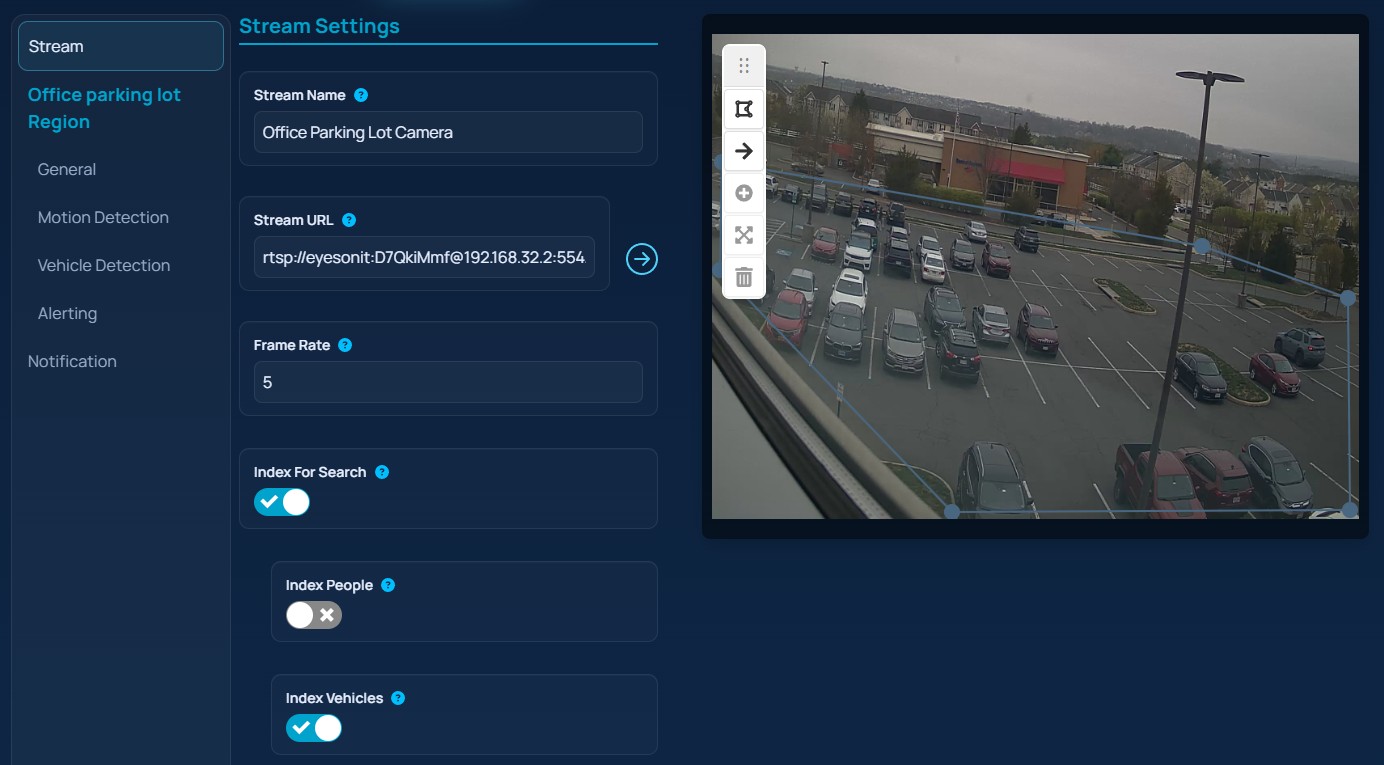
Previewing the stream
Use the arrow button next to Stream URL to request the current frame from the server. A successful preview does two things:
- it confirms that the stream is reachable
- it gives the editor an image on which regions and lines can be configured
After the preview loads, EyesOnIt creates a default region automatically. You can then reshape it or add more geometry before saving the stream.
Saving and reusing configuration
The editor supports both JSON import and JSON export through the folder and disk icons in the editor toolbar. Use this when you want to save a stream configuration or reload a previous one into the UI.