EyesOnIt for Genetec
EyesOnIt for Genetec brings AI-powered visual intelligence directly into the Genetec Security Center platform. If you are already familiar with Genetec, the integration will feel natural — EyesOnIt adds new tasks to Config Tool and Security Desk that fit alongside the tools you already use, rather than requiring a separate application or workflow.
How it works
EyesOnIt connects to your camera streams through the Genetec RTSP Media Gateway. Each camera is configured independently, giving you precise control over what EyesOnIt watches for, where it looks within the frame, and what happens when a detection occurs. When a detection meets your alert conditions, EyesOnIt can generate a Genetec event — which means it can feed directly into your existing Genetec event-action rules — and it can also index the detection so that Security Desk operators can search for it later.
There are no streams to manage outside of Genetec. The connection between a Genetec camera and an EyesOnIt stream is handled automatically.
Before you start
The plugin needs to know the address of your EyesOnIt server. In either Config Tool or Security Desk, navigate to Tools > Options > EyesOnIt and enter the server URL — for example, http://10.152.5.13:8000. You only need to do this once per machine.
Config Tool
Config Tool is where administrators set up what EyesOnIt does with each camera. There are two EyesOnIt tasks available here.
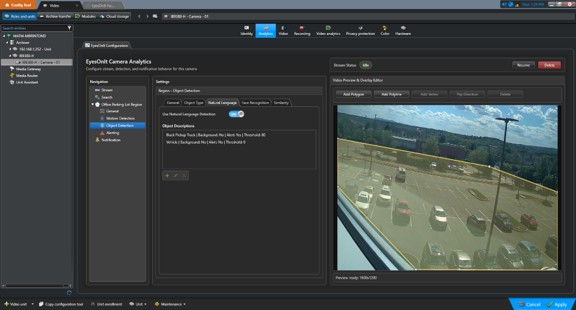
The Video Task is the main configuration surface. For each camera, you can:
- Give the stream a name and set the frame rate EyesOnIt processes.
- Choose which object families (people, vehicles, animals, bags) should be indexed so that Security Desk operators can search the footage later.
- Draw regions of interest directly on a live video preview, and add boundary lines for line-cross alerting.
- Configure what EyesOnIt should detect in each region — you can use object type classification, natural language descriptions, face recognition, or image similarity, and combine them as needed.
- Set the conditions and timing that determine when an alert fires.
- Map each alert to a Genetec event so it flows into your event-action rules.
The Face Recognition Task is where you manage the face recognition database. You can enroll people with photos, assign them to groups, and remove them when they are no longer needed. This data is shared across all cameras that use face recognition detection.
Security Desk
Security Desk is where operators and analysts work with the intelligence EyesOnIt has collected. There are two EyesOnIt tasks available here.
The Investigation Task lets you search the EyesOnIt index against recorded footage. You pick the cameras you want to investigate, choose a search mode — natural language, face recognition, or image similarity — set a time range, and generate a report. Results appear in a grid with thumbnails, timestamps, and confidence scores. Clicking through to a result loads the corresponding video clip in a four-tile player so you can review the context immediately.
The Monitoring Task runs continuously active live searches. Rather than searching the past, it watches live detections as they arrive, alerting you in real time. You can run multiple searches at once and manage them — pause, resume, or cancel — from a dedicated Manage tab.
The two tasks are designed to work together. If a live detection in Monitoring looks interesting, you can pivot directly into Investigation to search the archive for similar appearances. Conversely, an archive result can seed a new live search to watch for the same person or object going forward.