Stream and Search Settings
The Stream and Search entries at the top of the navigation tree control how EyesOnIt connects to the camera and what it stores for later investigation in Security Desk.
Stream settings
Select Stream in the navigation tree to see the stream settings.
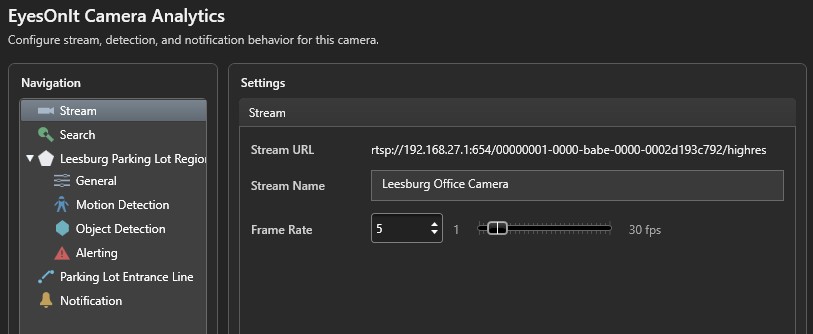
| Setting | Description |
|---|---|
| Stream URL | The RTSP URL EyesOnIt uses to connect to this camera. This is populated automatically from the Genetec RTSP Media Gateway configuration and cannot be edited here. |
| Stream Name | A friendly name for this camera as it will appear in EyesOnIt. It defaults to the Genetec camera name, but you can change it to something more descriptive if that helps operators identify it later. |
| Frame Rate | How many frames per second EyesOnIt processes from the stream. You can set this anywhere from 1 to 30 fps. Higher frame rates give more responsive detection but use more processing resources. |
Search settings
Select Search in the navigation tree to control what EyesOnIt indexes for archive search.
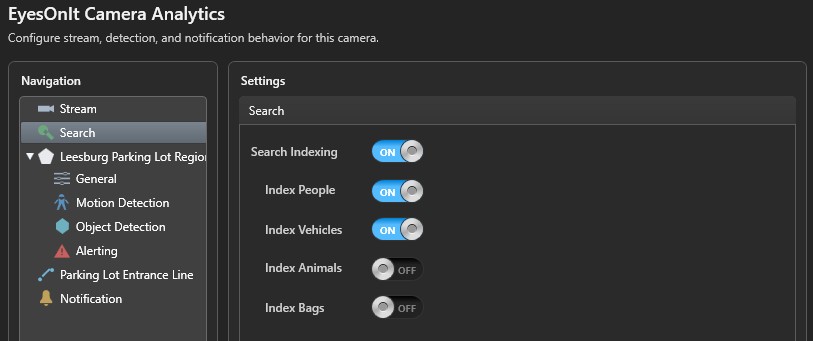
When an operator uses the Investigation task in Security Desk to search recorded footage, they are searching an index that EyesOnIt builds in real time as it monitors the camera. These settings determine which types of objects are added to that index.
| Setting | Description |
|---|---|
| Search Indexing | The master switch for indexing. When this is off, nothing is indexed for this camera regardless of the individual toggles below. |
| Index People | Add person detections to the search index. |
| Index Vehicles | Add vehicle detections to the search index. |
| Index Animals | Add animal detections to the search index. |
| Index Bags | Add bag detections to the search index. |
It is worth being selective here — enabling only the object families that are genuinely relevant to a camera's location keeps the index focused and avoids cluttering search results with detections that operators are unlikely to care about.
Monitoring controls
The Stream Status bar at the top right of the page shows the current state of this camera's EyesOnIt stream and provides three controls:
- Resume — appears when the stream is Idle. Click this to start EyesOnIt monitoring for this camera.
- Stop — appears when the stream is actively Monitoring. Click this to pause monitoring without losing your configuration.
- Delete — removes this camera's stream from EyesOnIt entirely. Your Config Tool configuration is preserved, so you can add the stream again later, but any in-progress indexing will stop.