
Secure your account
Protect your EyesOnIt sign-in with a private password and an authenticator. Save recovery codes so you can regain access when your phone is unavailable.
Watch the walkthrough
Section titled “Watch the walkthrough”Follow this captioned EyesOnIt web UI walkthrough, or use the written steps below.
1. Complete your first sign-in
Section titled “1. Complete your first sign-in”Open your server’s EyesOnIt web UI over HTTPS. Sign in with the username and temporary credential supplied by your administrator.
At Choose a private password, enter the temporary password, choose a new password, and confirm it. Use 12–128 characters and keep your username out of the password. Choose Change password, then sign in with the new password.
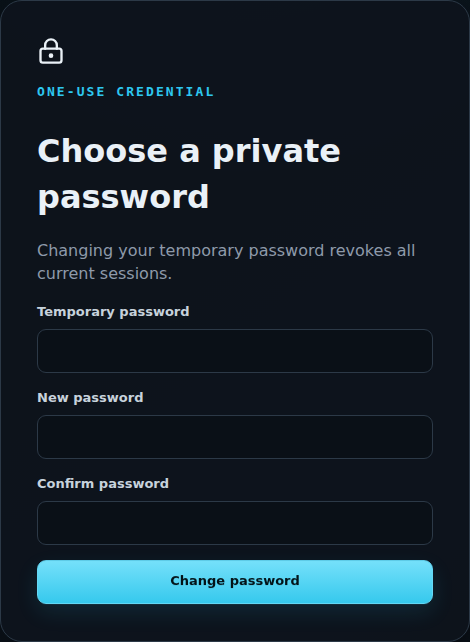
Changing the temporary password signs out the account’s existing sessions. If authenticator setup is required, EyesOnIt takes you through it before opening the workspace.
2. Set up your authenticator
Section titled “2. Set up your authenticator”- Choose Account security beside your account name.
- Choose Generate authenticator secret. If prompted, confirm your EyesOnIt password and an existing authenticator code.
- Scan the QR code with your authenticator app, or enter the displayed setup key manually.
- Enter the app’s Authenticator code and choose Confirm authenticator.
- Save the recovery codes in your secure password storage. Select I saved my recovery codes, then Continue to sign in.
- Wait for a new code in the app, then sign in with your password and Authenticator code.
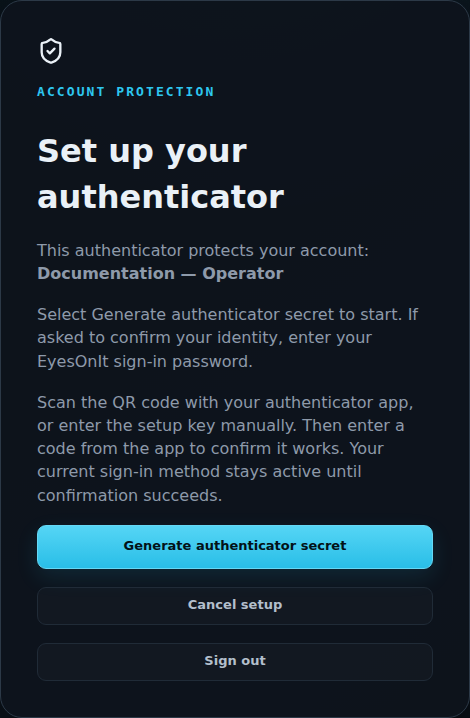
The new authenticator becomes active after confirmation. Confirmation signs out previous sessions. Use the same workflow to replace an authenticator, then save the new recovery codes.
Use a recovery code
Section titled “Use a recovery code”On the sign-in screen, select Use a recovery code. Enter your username, password, and one saved code, then choose Sign in. Each recovery code works once.
To recover a password, choose Forgot your password?, enter your username, and choose Send reset link. The link goes to the contact email on the account. Follow it to set a new password, then sign in with your authenticator or recovery code as usual.
Your administrator can help with authenticator recovery if you no longer have either your app or a saved code. Password recovery and authenticator recovery are separate tasks.
Review active sessions
Section titled “Review active sessions”An account administrator can open Administration → Users → Edit and review Sessions. The list shows sign-in and last-seen times. Revoke all sessions signs that account out across browsers.
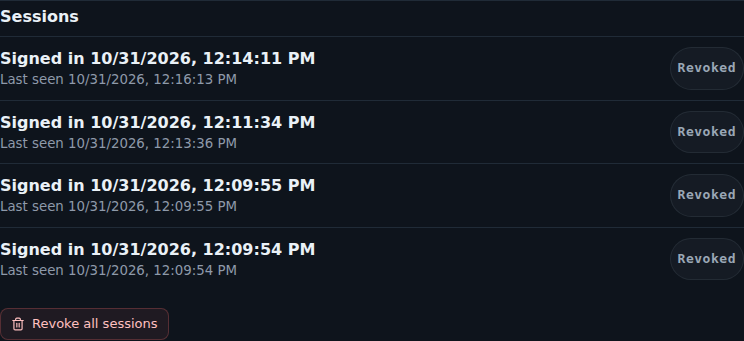
Use Sign out when you finish on a shared workstation. To change who can access cameras or manage an account’s MFA requirement, follow Manage users and camera access.