
Search by reference image in Genetec
Follow a useful candidate with an image-based search across indexed camera history.
Start from a candidate
Section titled “Start from a candidate”Run a description search and inspect a promising appearance. Choose Find this person in archive beneath the candidate. The plugin selects Similarity, uses that candidate as the reference, and runs the archive search.
In the campus example, start with a clear view of the person carrying the blue backpack. Compare the returned jacket, jeans, backpack, and surrounding camera video.
Confirm the follow-up search
Section titled “Confirm the follow-up search”- Choose Find this person in archive under the intended candidate.
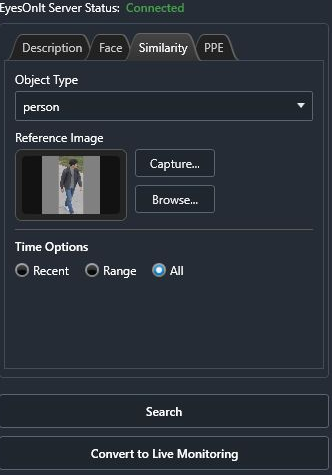
- Check that Similarity shows the candidate’s image and person object type.
- Recheck the camera tree. Select the intended cameras for the follow-up search.
- Check Time Options and choose Search again if you changed the scope.
The current plugin requires an existing EyesOnIt result as the archive-search reference. Browse… and Capture… can display an image preview; use a result’s Find this person in archive action to run the candidate-based search shown here.
Review and continue
Section titled “Review and continue”Sort and inspect the returned candidates. The reference helps find similar appearances; confirm each result through its image and available video.

Double-click a mapped result to open video at its timestamp. Playback requirements explain the camera and recording checks.
Use Convert to Live Monitoring for a temporary image-based watch. This can start immediately when the server is ready. Check its settings in Manage and stop the watch when finished.