
Upgrade EyesOnIt and verify rollback
Use the managed installer to update EyesOnIt and verify the result. The deployment tools retain the previous installation and its recovery data so you can perform a controlled rollback when needed.
Watch the walkthrough
Section titled “Watch the walkthrough”Prepare the update
Section titled “Prepare the update”- Record the installed version with sudo eoi status.
- Verify the server’s backup and recovery plan.
- Note the cameras that should be monitoring and any configuration changes you need to verify afterward.
- Choose a maintenance window and obtain the approved installer for your deployment provider.
Use the native Linux installer for a native installation or the Docker installer for a Docker installation. Download its checksum alongside it and verify the download before starting.
Apply the approved update
Section titled “Apply the approved update”Run the installer and review the installed and target versions. Follow its prompts for any required dependency preparation or maintenance approval. The managed update checks the release, captures its recovery state, updates the application data, and verifies readiness.
Keep the installer running until it reports completion. If you reconnect during a background operation, use its reported operation identifier to check progress:
sudo eoi operation status OPERATION_IDUse the operation’s result and next action to continue. Check the current operation before submitting another update.
Verify the updated installation
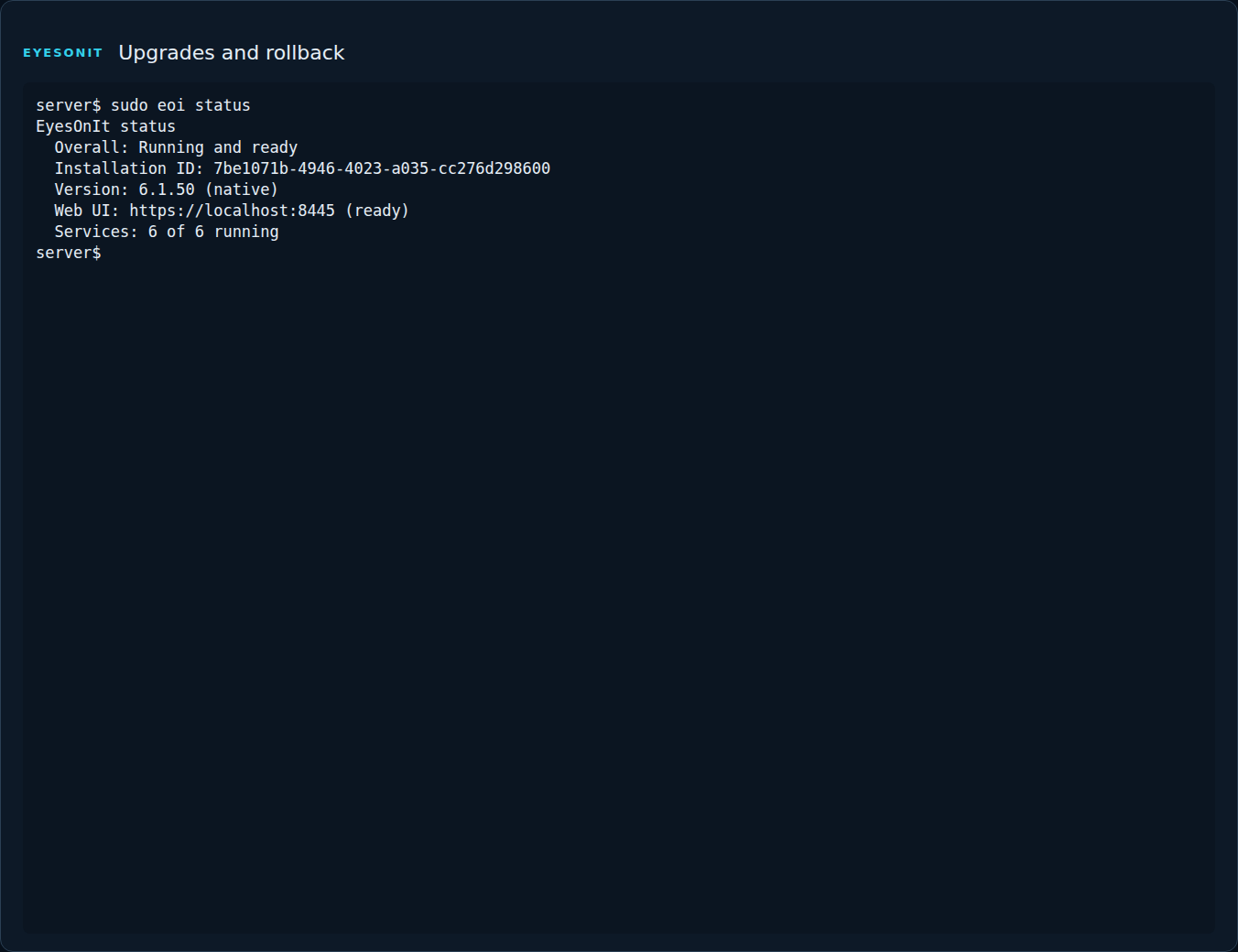
Section titled “Verify the updated installation”Run sudo eoi status, then open the web UI. Confirm the version, public HTTPS readiness, expected monitoring cameras, and representative live video. Review a detection and a retained recording, and check the permissions and integrations relevant to your site.
Roll back to the retained release
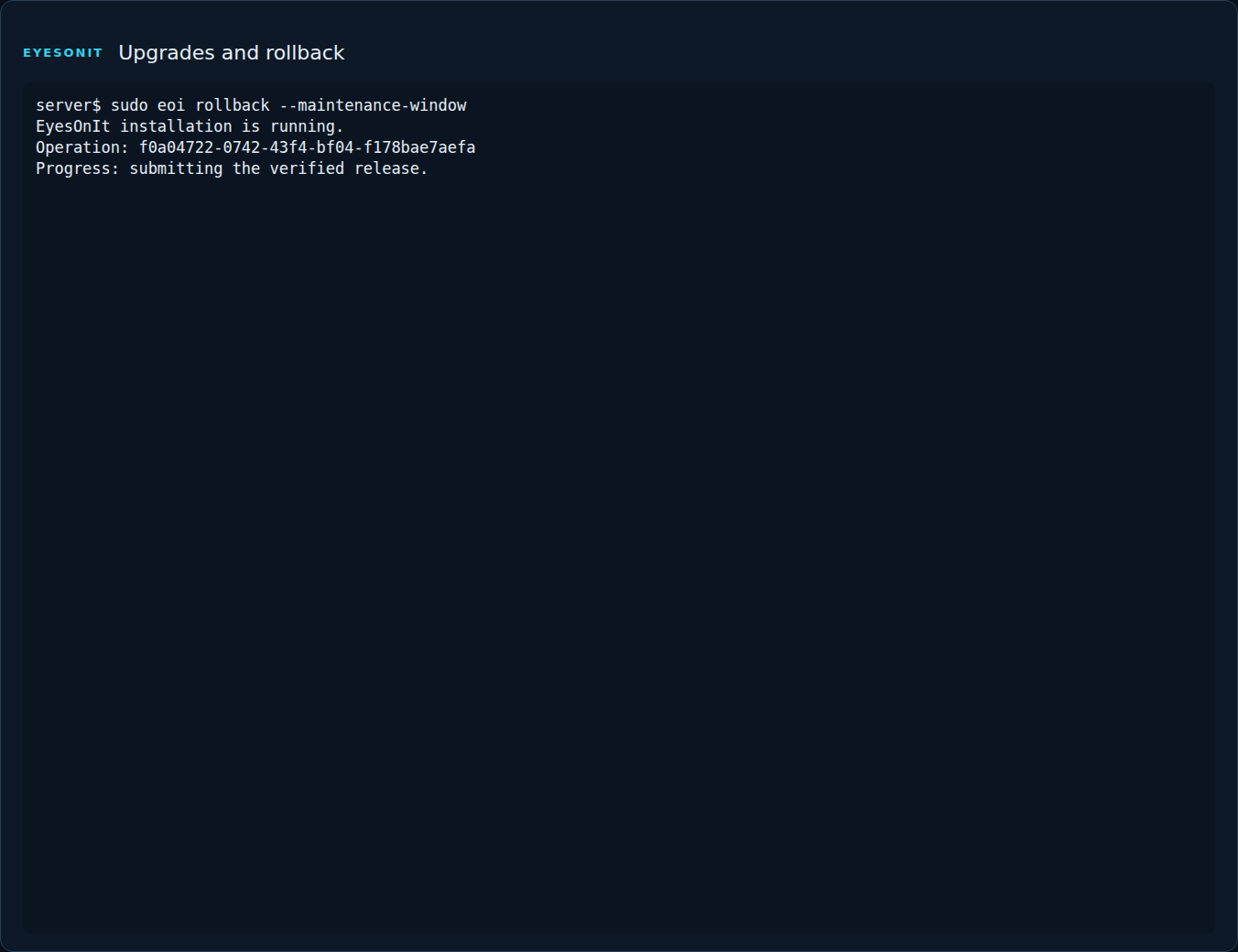
Section titled “Roll back to the retained release”Use rollback during a planned recovery window. Review changes made since the update and the installation’s retained recovery point. For a native installation, approve the maintenance window explicitly:
sudo eoi rollback --maintenance-windowRollback selects the retained previous installation and its matching recovery data. Allow the operation to finish, then check status. For Docker, use sudo eoi rollback –deployment docker.
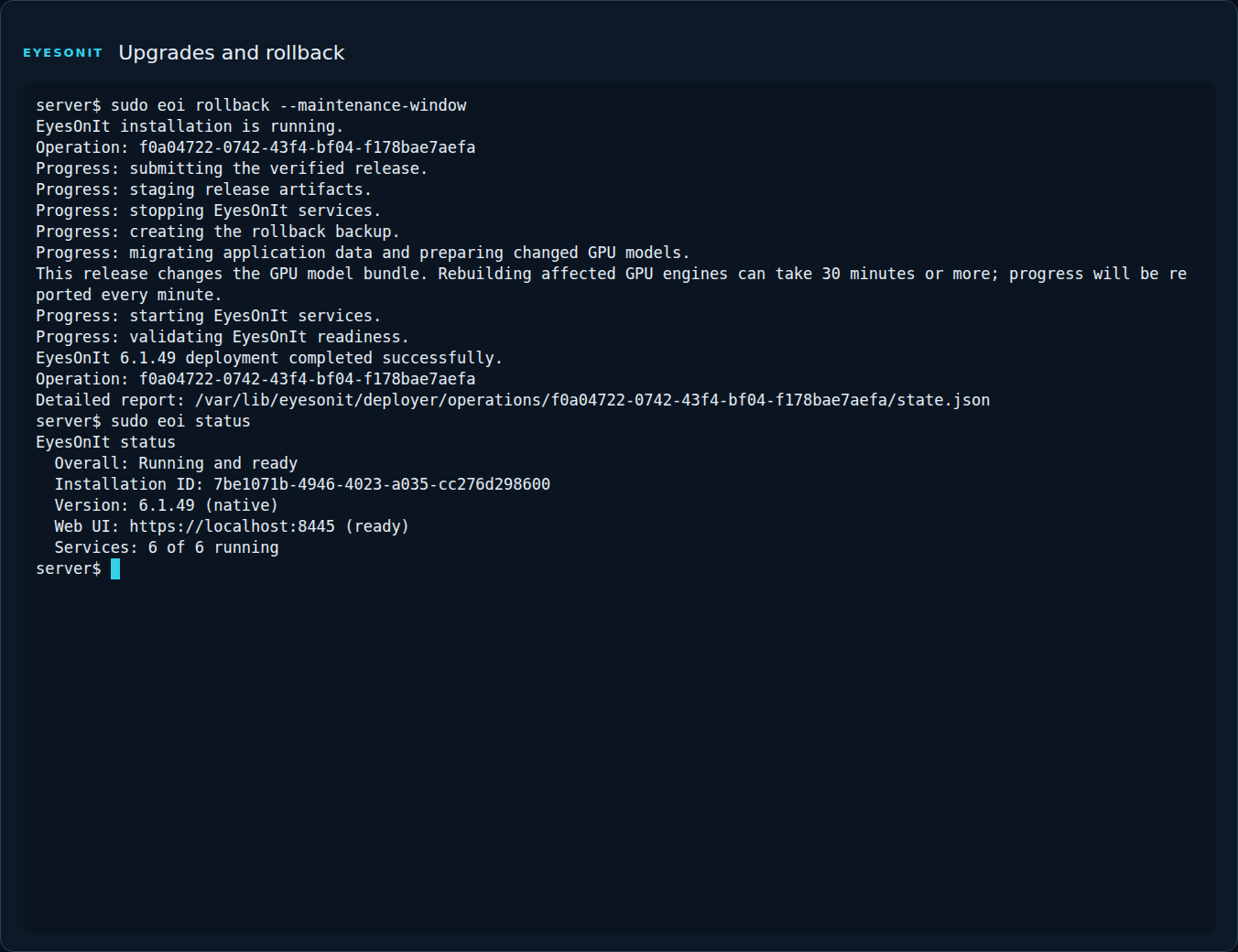
Repeat the camera, recording, account, and integration checks from the update verification. Keep the operation result with your maintenance record. For recovery onto another server, use the complete server backup workflow.