
Create a detection and alert rule in Genetec
Detection defines what qualifies. An alert rule defines how long it must qualify and what happens next.
1. Choose the condition
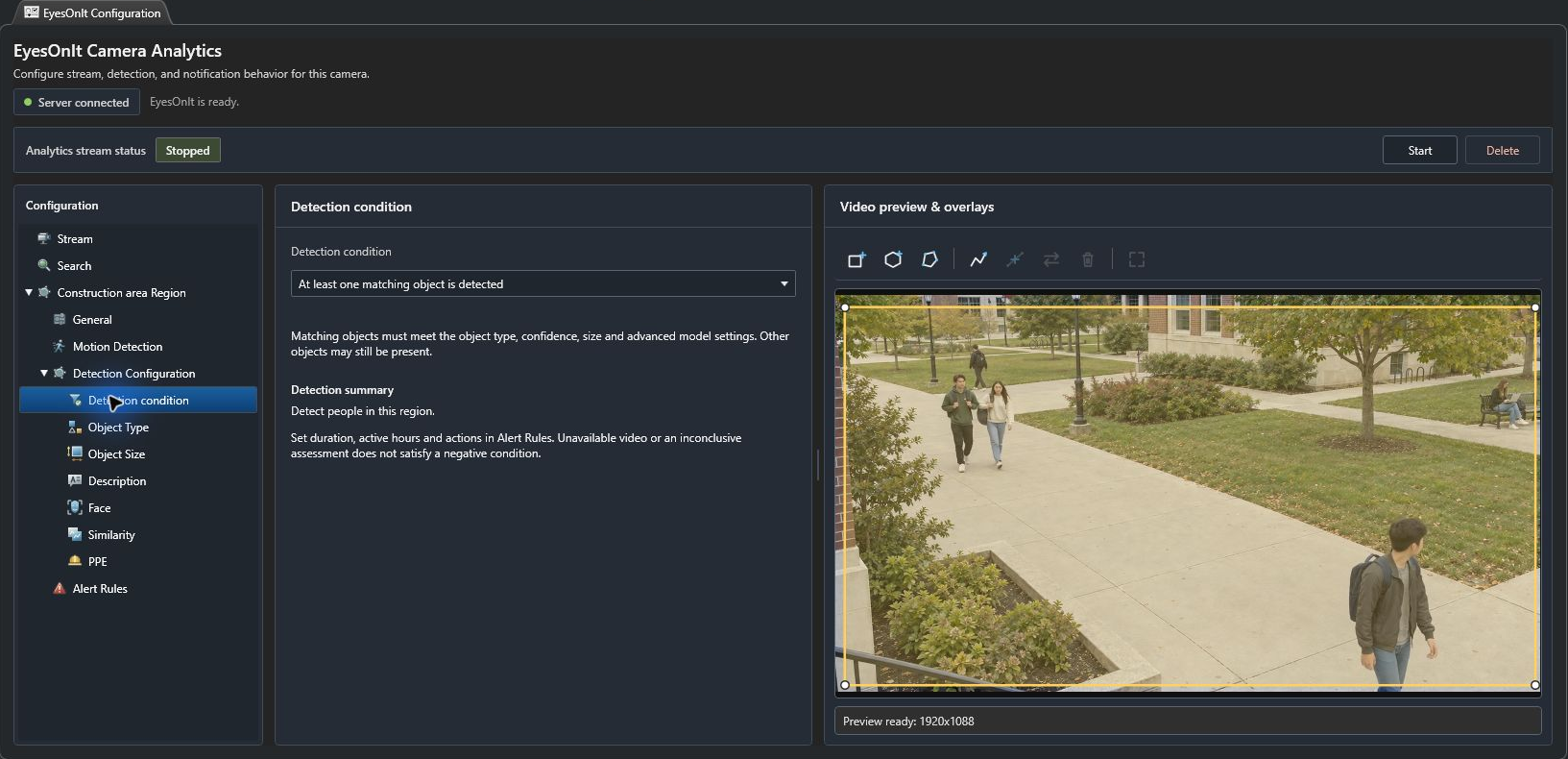
Section titled “1. Choose the condition”In the camera’s EyesOnIt Configuration, select the region and its Detection Configuration. Set the object filters and any description, face, similarity, or PPE condition first.
Open Detection condition and choose:
| Choice | Use |
|---|---|
| At least one matching object is detected | Someone or something satisfying the configured filters is present. |
| No matching objects are detected | The region has been assessed and no qualifying object is present. |
Read Detection summary. A person who does not match a description is different from no matching person being present. Unavailable video or an inconclusive assessment does not satisfy a negative condition.
2. Set the alert rule
Section titled “2. Set the alert rule”- Open Alert Rules for the region.
- Choose + to add a rule, or double-click an existing row.
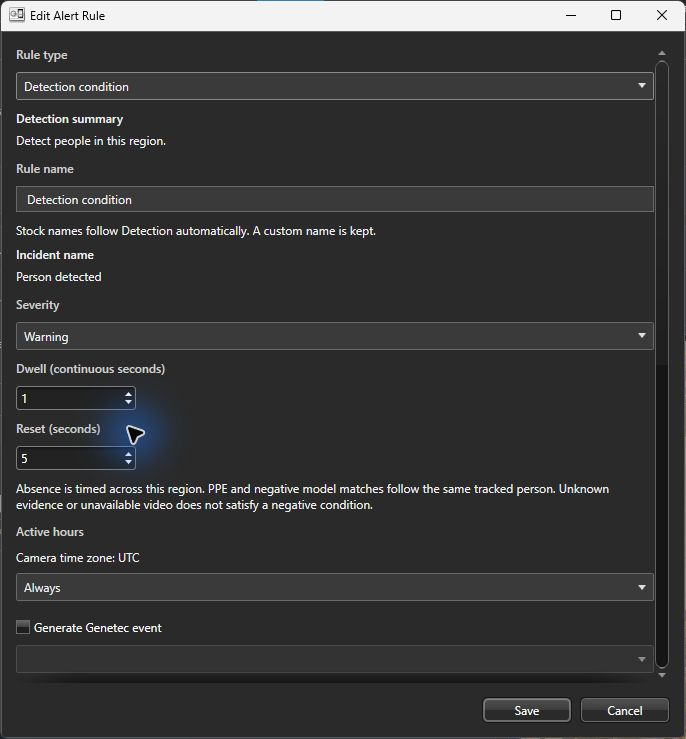
- Use Detection condition as Rule type.
- Enter a useful Rule name and check Incident name. A custom name is retained; stock names follow the detection settings.
- Choose Severity, Dwell (continuous seconds), and Reset (seconds).
- In Active hours, choose Always or Custom weekly hours. Check the displayed camera time zone. Custom ranges use 24-hour HH:mm times and can cross midnight.
- Choose Save, then Apply in Config Tool to save the camera configuration.
3. Verify timing and evidence
Section titled “3. Verify timing and evidence”For the campus description example, start with 1 second dwell, 5 seconds reset, Review severity, and Always. These are example settings to test with the library-plaza clip.
Absence timing applies across the region. PPE and negative model matches follow the same tracked person. Check both a qualifying sequence and a sequence that should stay clear. Use the PPE guide for the missing-gloves example.
Choose Start if analytics are stopped. Check evidence in the appropriate investigation workflow, and use the web UI’s incident review for ownership, notes, and resolution. Add Genetec event routing when the rule is ready.