
Detect objects together
Detect when two qualifying people or objects are in the same area. For example, identify a worker wearing selected PPE alongside another person in a work zone.
Watch the walkthrough
Section titled “Watch the walkthrough”Create two detection configurations
Section titled “Create two detection configurations”Open Monitor → Configure and select the work-area region. Under Detection, create a configuration for each side of the rule. Give them distinct names:
| Configuration | Example settings |
|---|---|
| Workers wearing PPE | Person wearing a hard hat and high-visibility vest. |
| People in work area | Person, using the size and confidence appropriate to the scene. |
Use a presence condition for both. The rule needs two distinct objects: one person satisfying both configurations does not make a pair.
Add the co-presence rule
Section titled “Add the co-presence rule”- Open Rules and choose Co-presence.
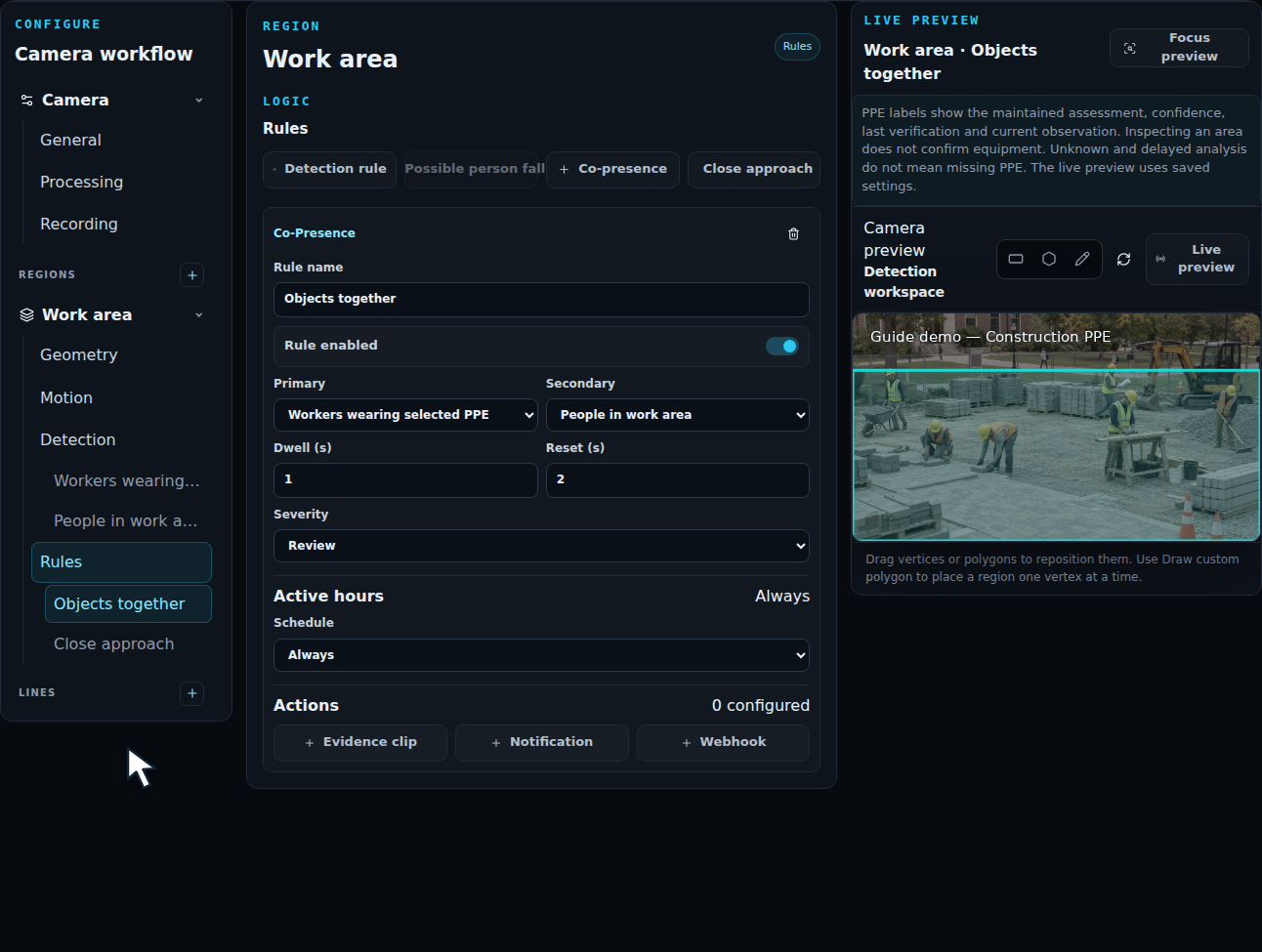
- Set Primary and Secondary to the two configurations.
- Enter a descriptive Rule name.
- Set Dwell (s) for how long the pair must be present, and Reset (s) for recovery. The example uses 1 s dwell and 2 s reset.
- Choose severity, schedule, and any actions. Save the configuration.
Validate the pair
Section titled “Validate the pair”Check a single person, two qualifying people together, and a pair separating. Review the incident evidence to confirm which objects qualified. Co-presence means they occupy the same region; use Close approach when their distance also matters.
Keep the region focused on the shared area. For example, exclude a public walkway behind a work zone so people outside the intended area do not participate in the rule.