
Search video for PPE
Find people wearing or missing gloves, glasses, hard hats, or high-visibility vests. Use archive search to investigate retained assessments, or start a live search to watch for new matches.
Watch the walkthrough
Section titled “Watch the walkthrough”Prepare the cameras
Section titled “Prepare the cameras”Configure PPE detection for the regions and equipment you want to search. Archive search uses the retained PPE assessments collected by the camera. Use continuous recording when you want to review the surrounding video.
The construction example searches for workers wearing a hard hat and high-visibility vest. The camera has both items configured in its work-area region.
Search retained assessments
Section titled “Search retained assessments”- Open Search, choose Archive, then PPE.
- Set Equipment condition to Wearing or Missing.
- Choose the equipment and set Equipment requirement to All selected items or Any selected item.
- Use Camera scope to select the cameras. Set the time range for your investigation.
- Choose Search archive.
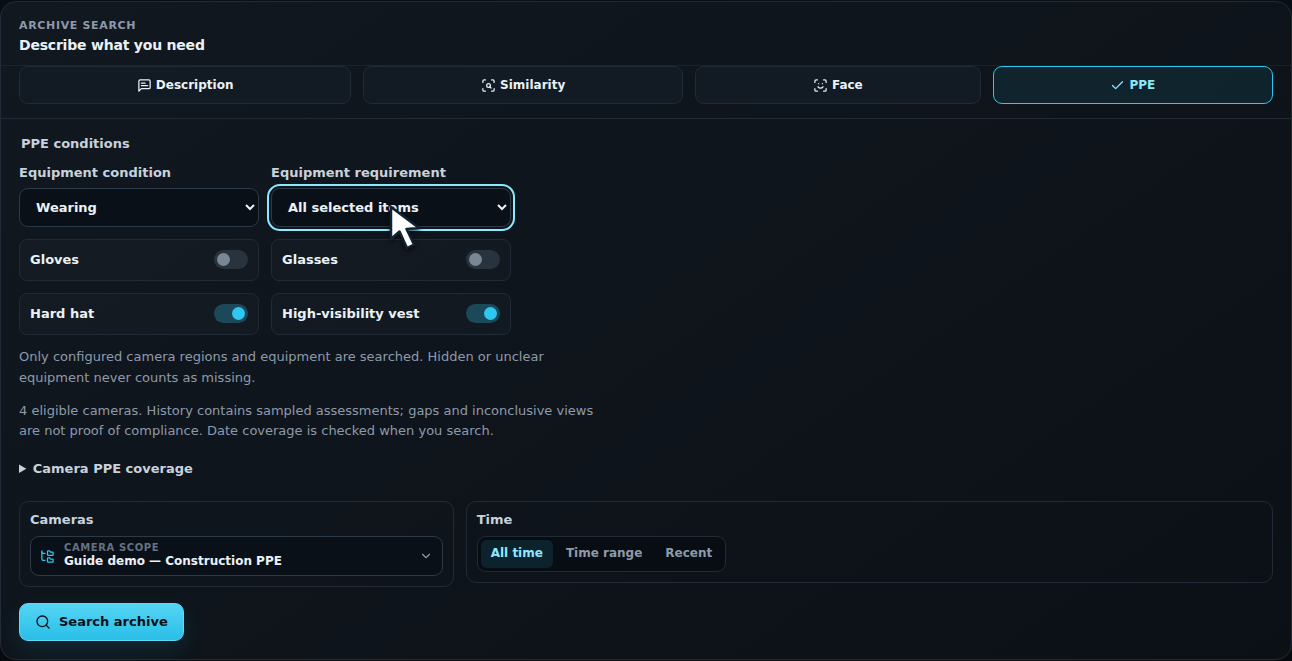
Wearing · All selected items finds a person confirmed wearing every selected item. Missing · Any selected item finds a person confirmed missing at least one of them. The other combinations let you ask for any worn item or all items missing.
Expand Camera PPE coverage to review available assessments and their dates. Search uses the configured equipment and regions. A confirmed missing result requires a clear assessment; hidden or unclear equipment is inconclusive.
Review a match
Section titled “Review a match”Open a result to inspect the person, equipment assessment, camera, and time. Follow the result to retained video to see the surrounding activity. Compare the evidence with the question you are investigating.

Watch for new matches
Section titled “Watch for new matches”Choose Live and PPE, then select the condition, equipment, and running cameras. Set the search duration and choose Start live search. Review incoming matches while the search runs.

Cancel the search when the task is finished. For a recurring operational alert with incident timing and notifications, use a PPE detection rule.