
Detect a close approach
Create an incident when two qualifying objects come close in a camera view. Combine distance with movement conditions when the task calls for an approaching pair.
Watch the walkthrough
Section titled “Watch the walkthrough”Choose the objects
Section titled “Choose the objects”Create two presence configurations in one region, as in the co-presence guide. Use names that identify their roles, such as Workers wearing PPE and People in work area. The rule evaluates distinct tracked objects.
Set the distance
Section titled “Set the distance”- Open the region’s Rules and choose Close approach.
- Select Primary and Secondary.
- Set Distance mode to Image percent.
- Set Maximum distance. This demonstration uses 20.
- Set dwell, reset, severity, and schedule.
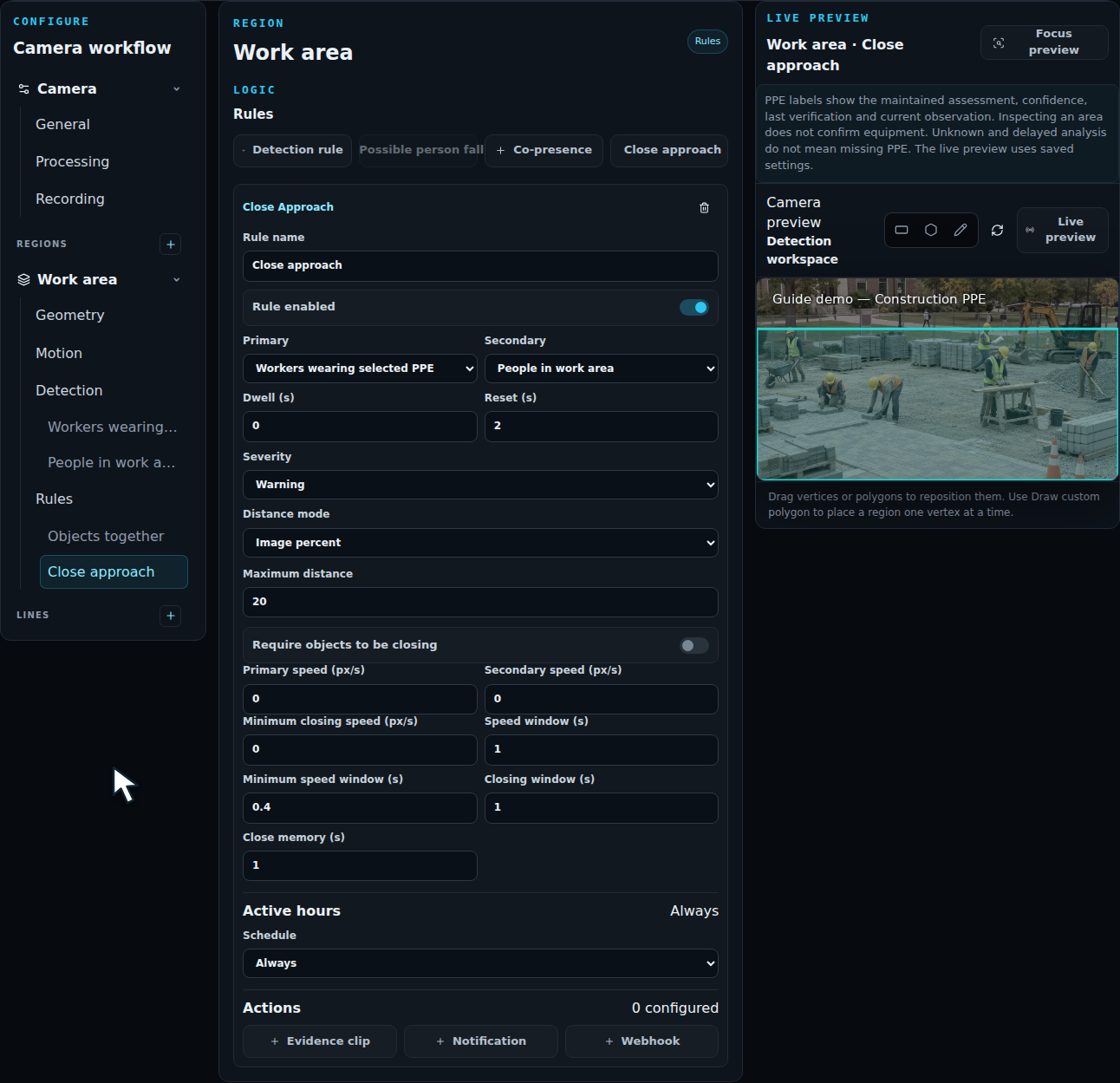
Image percent measures the gap between the two detection boxes as a percentage of the frame diagonal. It is a view-based threshold. Tune it with examples from the part of the scene you want to monitor.
For a camera with ground-plane calibration, choose Calibrated meters to use a physical distance. Validate the calibration at several positions in the scene before setting the rule.
Add movement conditions
Section titled “Add movement conditions”Turn on Require objects to be closing when the objects must be moving toward each other. Use Primary speed (px/s) and Secondary speed (px/s) to require movement from either participant. Leave them at 0 when stationary participants should qualify.
Test distance first, then add speed or closing requirements one at a time. Check objects approaching, separating, and briefly passing behind one another.
Choose Save configuration and review the resulting incidents. Confirm the pair and distance in the evidence before adding notification actions.