
Detect using a reference image in Genetec
Use a clear example image to detect similar appearances in a camera region.
Configure the reference
Section titled “Configure the reference”- Open the camera’s EyesOnIt Configuration and select the region.
- Check Object Type and Object Size for the objects you want to compare.
- Open Similarity and enable Use Similarity Detection.
- Choose Browse… to select an image, or Capture… to select suitable available footage through the capture dialog.
- Check the reference preview. Keep the intended person or object prominent in the image.
- Select Matches a selected reference in Similarity condition and review the match-threshold controls below the reference section. Scroll the settings pane if needed.
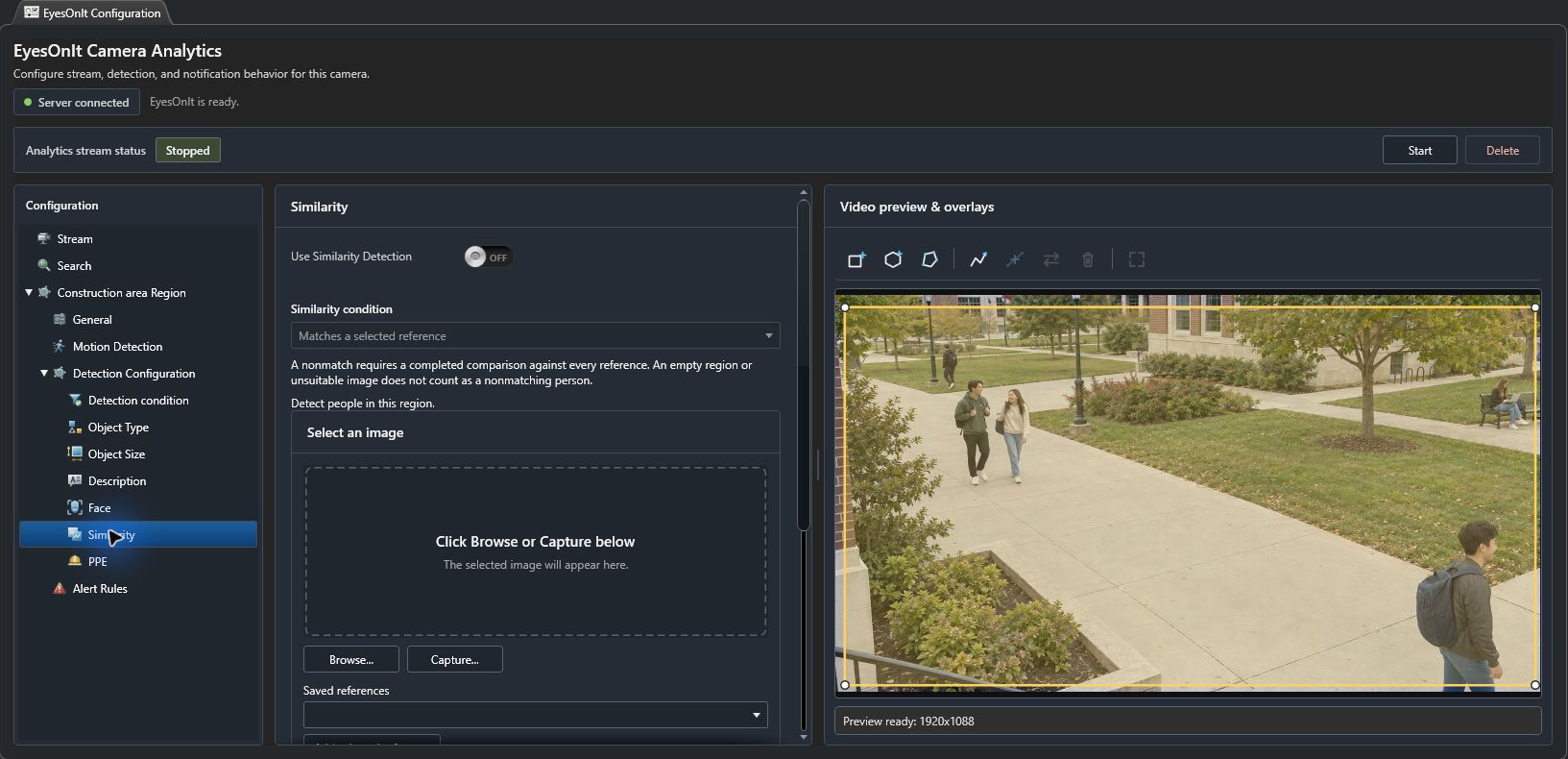
Use Saved references and Add selected reference when reusing an existing reference. Review the selected references before applying the configuration. A nonmatch requires completed comparisons; an empty region or unsuitable image does not establish a nonmatching person.
Add the alert rule
Section titled “Add the alert rule”Open Detection condition and choose whether the rule requires matching objects to be present or absent. Read the summary, then open Alert Rules to set the name, timing, severity, and active hours.
Save the rule and apply the camera configuration. Test clear appearances of the intended object and similar alternatives. Adjust the reference and threshold using representative results.
For the campus example, use a clear crop of the person carrying the blue backpack. To follow an already returned candidate across indexed footage, use Image similarity search in Security Desk.