
Monitor cameras in Genetec
Run a temporary watch for a description, reference image, face, or PPE condition across selected cameras.
Create a live search
Section titled “Create a live search”- Open EyesOnIt Monitoring and choose Search.
- Select the cameras to watch. Leaving every camera unchecked uses all available cameras.
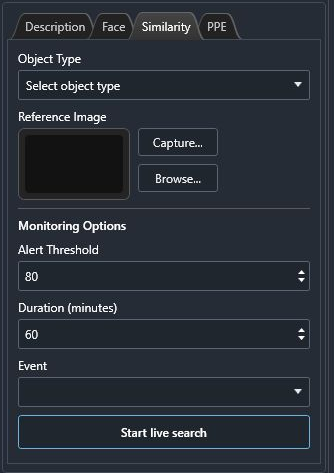
- Choose Description, Face, Similarity, or PPE, then enter the corresponding criteria.
- Set Duration (minutes) and, when offered, Alert Threshold.
- Review Event. Leave event delivery off for an initial test.
- Choose Start live search and check the status in Manage.
Use the campus description, Campus demo — Alex, a blue-backpack reference image, or the missing-gloves condition for the matching examples. Cameras need available video and the appropriate EyesOnIt processing for the selected search kind.
Manage the watch
Section titled “Manage the watch”Open Manage and select Active and Paused, Ended, or All. Check the search card’s criteria, cameras, timing, lifecycle, and event-delivery status.
| Control | Use |
|---|---|
| Pause | Pause an active search. |
| Resume | Resume a paused search. |
| Stop | End the watch. |
| Edit | Load an existing search’s settings for review and update. |
| Duplicate | Load a copy of its settings for a separate search. |
| Start again | Load an ended search’s settings for review. |
| Refresh searches and event status | Refresh lifecycle and delivery information. |
Ended settings are saved on the workstation. Review loaded settings before submitting another watch. Stop temporary test watches when finished and refresh to confirm their state.
Move between archive and live investigation
Section titled “Move between archive and live investigation”In EyesOnIt Investigation, Convert to Live Monitoring can immediately start a watch when the models are ready. Find this person live beneath a candidate is also a live execution action.
Use Convert to Investigation from the Monitoring search editor to continue with an archive investigation. Review the time period for the archive query. Search video explains the result and playback workflow.
A temporary live search has its own lifecycle and event options. The saved camera’s alert rules remain a separate configuration.