
Route Genetec events and review evidence
Connect a tested EyesOnIt condition to the event your Genetec team uses, and confirm the evidence available for review.
Configure the rule’s Genetec event
Section titled “Configure the rule’s Genetec event”Begin with a tested detection condition. Keep analytics stopped while preparing a new event route.
- Open the camera’s EyesOnIt Configuration → Alert Rules.
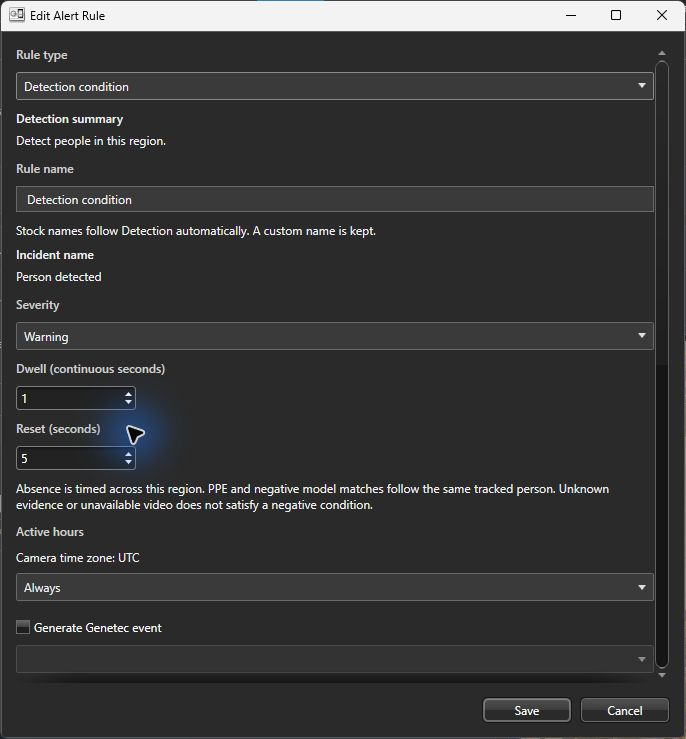
- Choose + to add a rule, or double-click an existing rule. Verify its condition, name, severity, dwell, reset, and active hours. A fresh rule starts with a one-second dwell, five-second reset, Warning, Always, and event generation off. Change only the fields needed for your scenario.
- Select Generate Genetec event.
- Choose the appropriate event in the list below it.
- Save the rule, then apply the camera configuration.
An event is the input to your configured Genetec response. Your Genetec administrator sets the event-to-action or alarm workflow and operator access. Verify the selected route through that procedure before using it operationally.
For a temporary live search, choose its Event in Monitoring Options. Existing searches display their delivery status in Manage. Check the status of that search independently from a saved camera rule.
Choose the evidence to retain
Section titled “Choose the evidence to retain”| Evidence | Where to configure or review it |
|---|---|
| Search thumbnails and indexed appearances | Camera Search settings and Security Desk EyesOnIt Investigation. |
| Genetec camera recordings | The camera’s Genetec recording configuration and Security Desk playback. |
| EyesOnIt incident snapshots, clips, and delivery profiles | The shared server’s notifications and evidence workflow. |
| Incident ownership, notes, and resolution | The web UI’s incident review workflow. |
Config Tool displays Additional settings managed by the EyesOnIt server for actions it retains outside the current native editor. In this walkthrough’s build, the newly saved Genetec event also appears in that summary after Apply. Those settings are retained when supported camera settings are applied. Manage server delivery profiles through the web UI. Have your Genetec administrator verify the retained event route as part of the response test below.
Test the intended response
Section titled “Test the intended response”First verify the condition and evidence with event generation off. Then, in an approved test, trigger the intended condition and confirm the event, camera, time, and downstream response. A connected server, searchable thumbnail, or annotated preview alone does not prove that notification or alarm delivery succeeded.