
Prepare and assign cameras
Prepare cameras ahead of deployment. Use the Camera library to collect connection and detection settings, then assign each camera to this server or a managed local server.
Watch the walkthrough
Section titled “Watch the walkthrough”Prepare the camera
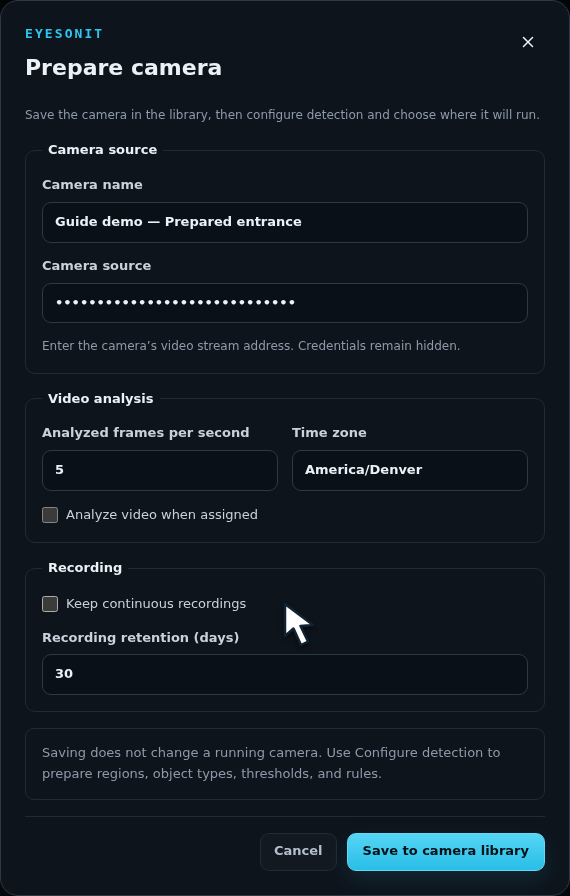
Section titled “Prepare the camera”Sign in as a system administrator in the provider workspace. Open Administration → Camera library and choose Prepare camera.
- Enter a recognizable Camera name and its masked Camera source address. The processing server must be able to reach this address.
- Set Analyzed frames per second and Time zone.
- Choose whether to Analyze video when assigned. Leave it off when you want to review the deployed camera before starting analysis.
- Choose continuous recording and retention for this camera.
- Choose Save to camera library.
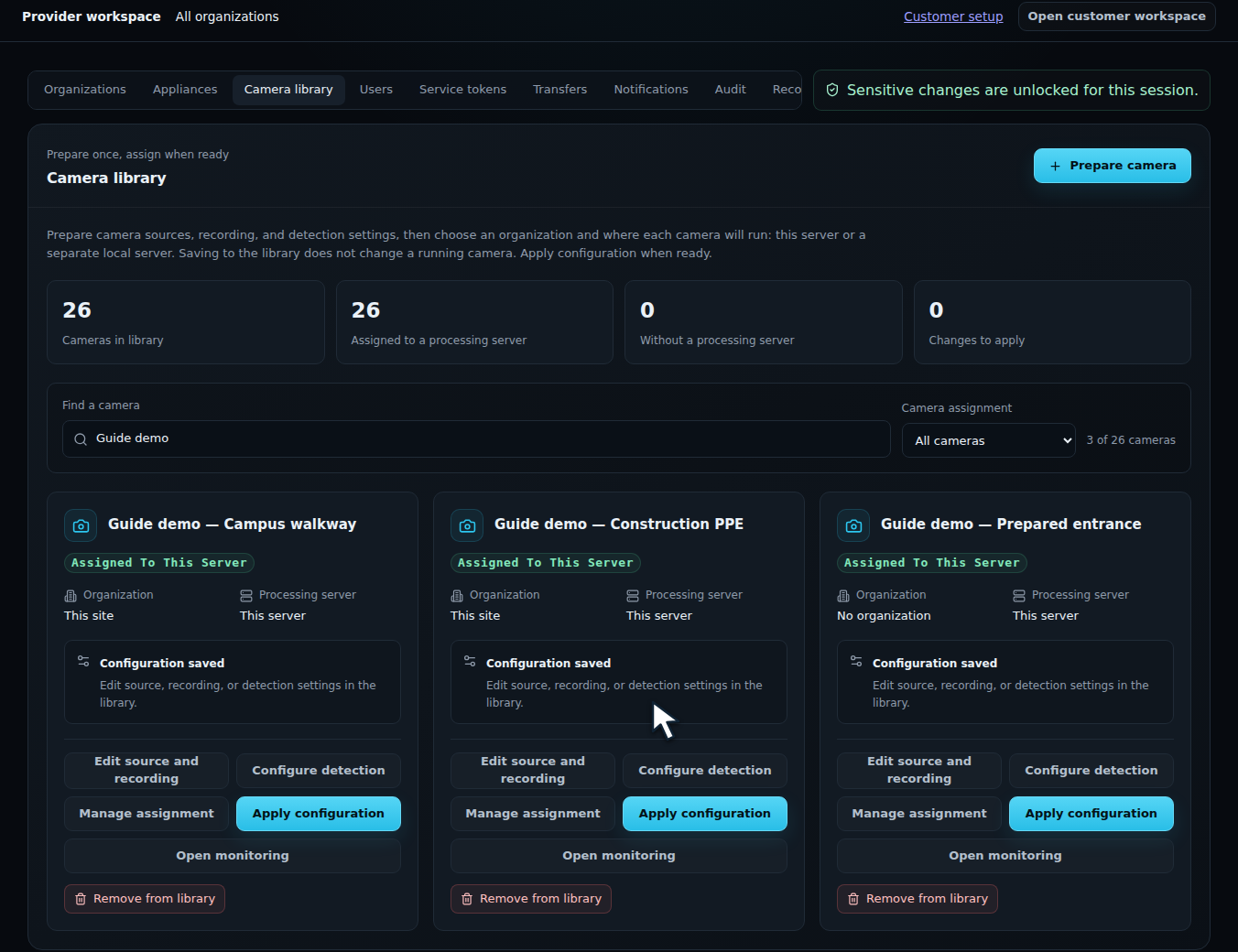
Choose Configure detection on its library card to set regions, object types, conditions, and rules. Save the configuration when the draft is ready.
Choose where it runs
Section titled “Choose where it runs”Choose Manage assignment, then select an Assignment:
| Choice | Use it for |
|---|---|
| Run on this server | Process the camera directly on the EyesOnIt server you are using. |
| Choose local server | Process it on a registered managed server, such as a server at the camera’s site. |
| Choose organization | Set the customer organization that owns the camera. |
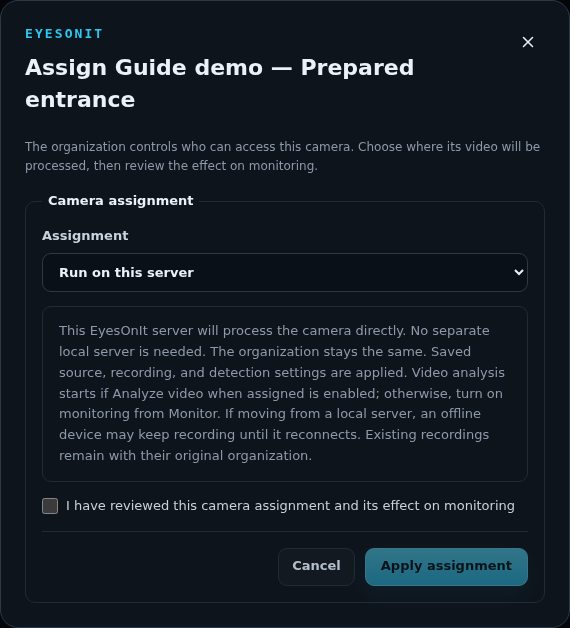
Read the effect on monitoring, check I have reviewed this camera assignment and its effect on monitoring, and choose Apply assignment. A camera assigned to a local server uses that server’s organization.
Verify and maintain the camera
Section titled “Verify and maintain the camera”For a camera running here, choose Open monitoring. Start the camera if you staged it paused, then check live video and analysis. For a managed local server, check its connection and camera status in Appliances.
Use Edit source and recording or Configure detection to revise the library entry. When an assigned camera has a new saved configuration, choose Apply configuration, review the target, then Apply saved configuration. Verify the result in live video.
For customer ownership and rule-editing access, see Camera ownership.