
Search video in Genetec
Describe what you want to find, narrow the cameras and time period, and review the returned appearances.
Prepare searchable video
Section titled “Prepare searchable video”In Config Tool, open the camera’s Analytics → EyesOnIt Configuration → Search. Enable Search Indexing and the kinds of history you need: Description, Similarity, Face, or PPE. Apply the camera configuration and start analytics before the period you want to investigate.
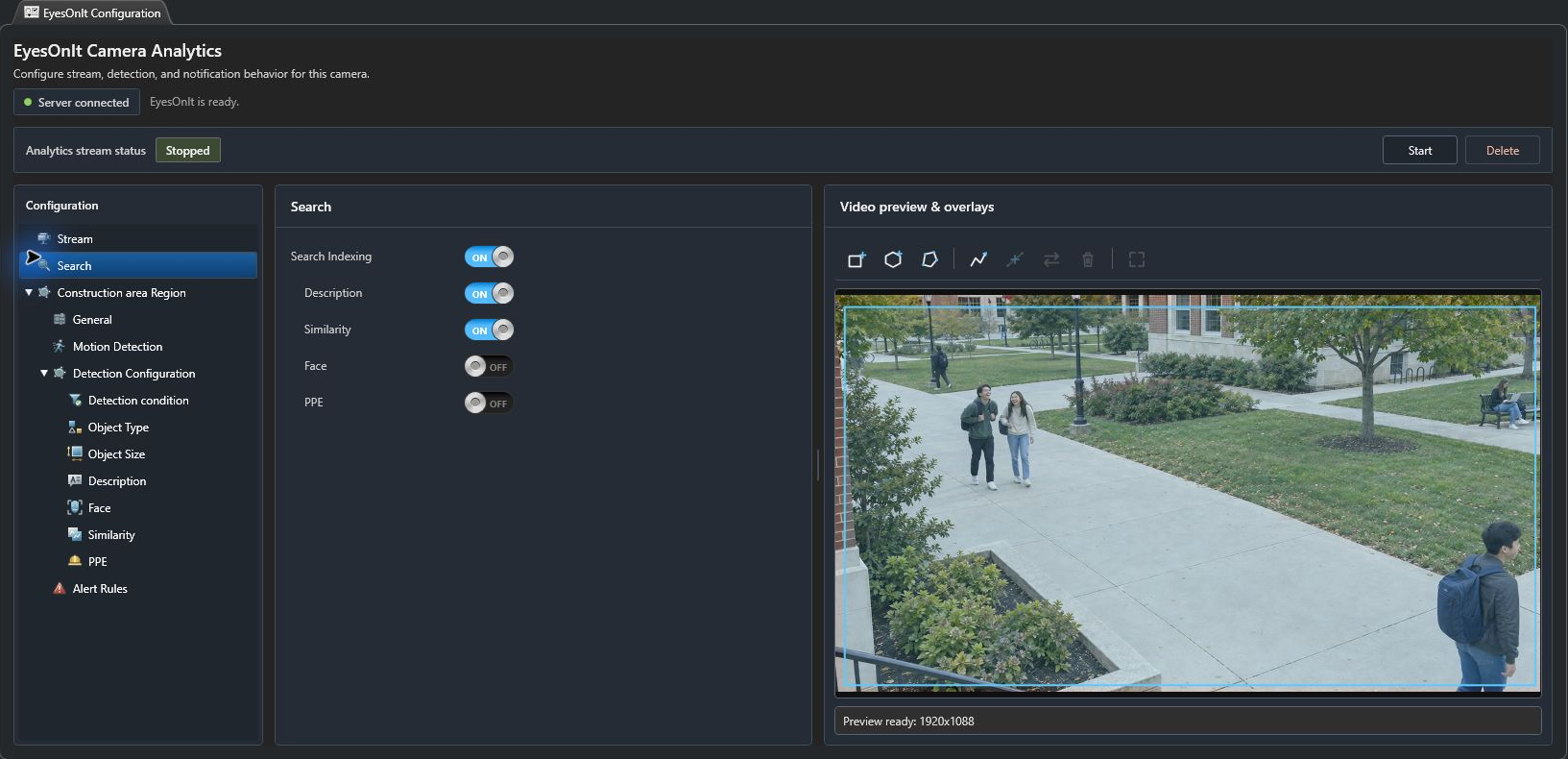
Indexing and camera recordings serve different purposes. Indexing supplies searchable appearances; Genetec recordings supply the video opened in Security Desk tiles. Check both when preparing an investigation.
1. Search the campus archive
Section titled “1. Search the campus archive”-
Open EyesOnIt Investigation in Security Desk and check the EyesOnIt connection and archive-indexing status.
-
In the camera tree, select the relevant campus cameras. Use Search cameras… to find them. All cameras unchecked means all available cameras.
-
Choose Description and select person under What object type do you want to detect?
-
Under What do you want to search for?, enter:
man with short black hair wearing an unzipped dark gray jacket over a gray t-shirt, blue jeans and white shoes, carrying a blue backpack
-
Under Time Options, choose Recent, Range, or All. For Recent, enter Days, Hours, and Minutes. For Range, select the start and end.
-
Choose Search and wait for it to finish.
Begin with a bounded period and the cameras that cover the event. Use All when you intend to inspect all retained indexed history in the selected scope.
2. Review the candidates
Section titled “2. Review the candidates”Use Sort to prioritize confidence or time. Inspect clothing, backpack, shoes, and context together. A high match score prioritizes a candidate for review; it does not establish identity.

Use Find this person in archive beneath a candidate to seed and run a similarity search. Find this person live starts a live follow-up when the server is ready. Review the selected cameras and watch settings when using live search.
Double-click a result to open its mapped Genetec camera at the result time. This requires a valid camera association and a recording covering that time. See Play back related video.
3. Continue as a live watch
Section titled “3. Continue as a live watch”Convert to Live Monitoring carries the criteria into EyesOnIt Monitoring and can immediately start the watch when the models are ready. It is an execution action. Review the resulting search in Manage, including its cameras, duration, event setting, and status.
Follow Monitor cameras to pause, resume, or stop that watch. For other archive criteria, use reference images, faces, or PPE.