
Tune motion and timing in Genetec
Make sure EyesOnIt checks the moments your rule needs, including people who become still.
Configure motion admission
Section titled “Configure motion admission”- Open the camera’s EyesOnIt Configuration and select the region.
- Choose Motion Detection.
- For an initial continuous object-detection test, turn Motion Detection off.
- When motion admission suits the scene, turn it on and adjust Minimum Changed Area (% of frame) and Evaluation Interval (seconds).
- Use Force periodic object detection and Force detection interval (seconds) when you also need periodic checks while motion admission is enabled.
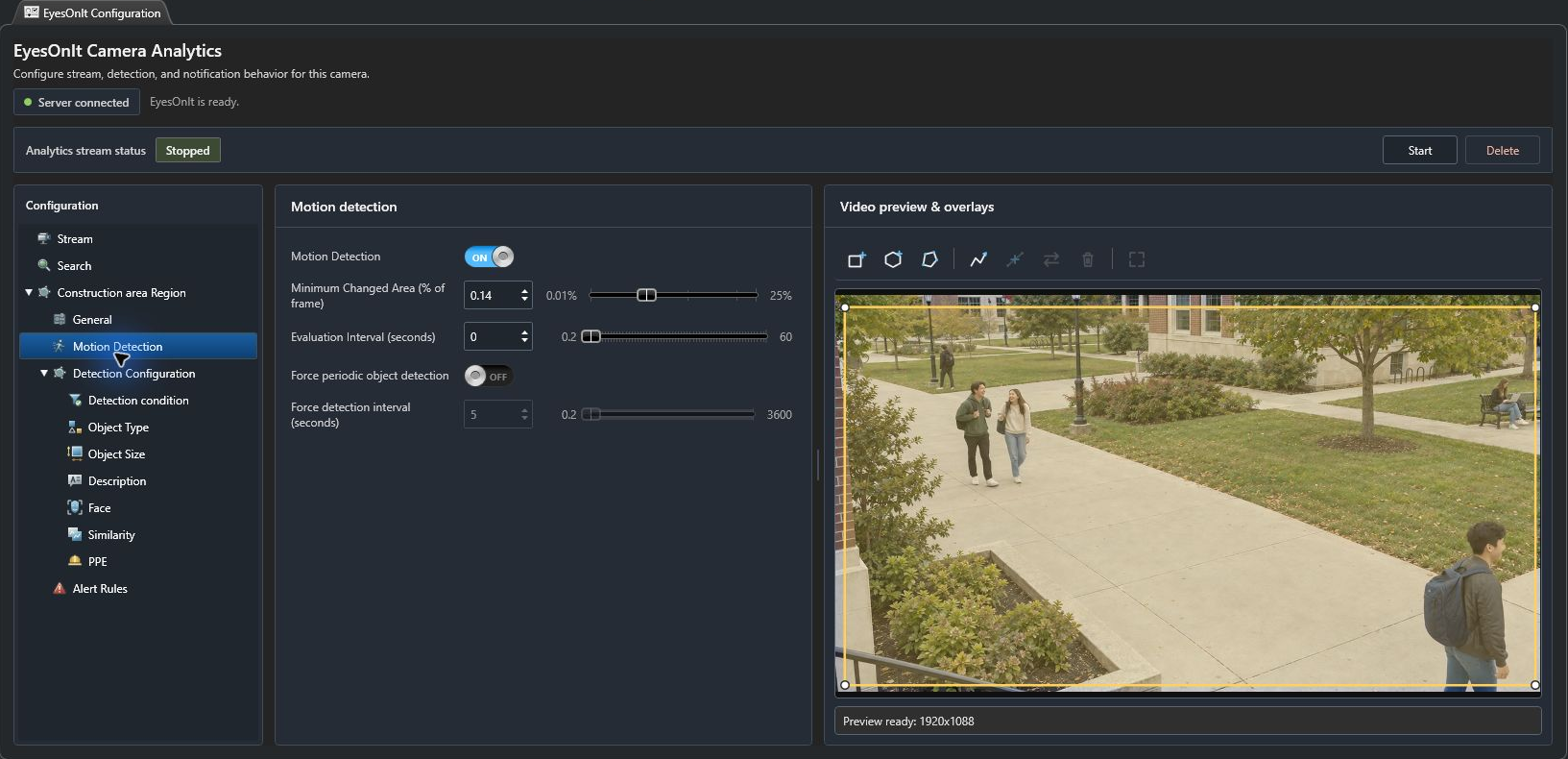
The percentage describes how much of the whole frame must change. Use representative footage to separate useful activity from trees, shadows, and other background changes. Read the units beside each field and verify saved values after applying changes.
Test the whole event
Section titled “Test the whole event”Check entry, stillness, and departure. Test the positions near each region edge and a person who remains seated or standing. For absence rules, ensure object detection can assess a clear region even when nothing moves.
Motion timing controls when detection is evaluated. Rule dwell and reset control when a qualifying condition becomes an incident. Tune them separately and check the resulting evidence.